

API Documentation
Note: This tutorial was written based on an old version of our documentation. The concepts are the same, but the screenshots and references are outdated. Apologies for the inconvenience while we work to update these resources.
API documentation and exploration
An important part of developing your Dropbox app is being able to reference and understand the API documentation.
The API documentation isn’t just a great reference tool but is also a place to discover and test new functionality. In this getting started guide we’ll discuss how to access and interpret the documentation and we’ll cover the API Explorer, a tool you can use to rapidly test different API endpoints when prototyping a new Dropbox application.
Dropbox API documentation
The Dropbox API documentation can be found here.
It contains reference material, installation instructions for platform SDKs, example code, and reference guides for topics such as authentication, namespaces, and data ingress.
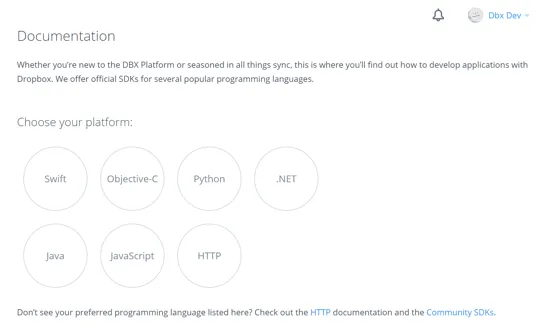
For this guide, we’ll be referring to the HTTP documentation, but several platform specific SDKs are also available. While the SDKs and HTTP endpoints are functionally equivalent, many developers prefer using SDKs when possible as they can reduce the amount of boilerplate code required to start accessing the Dropbox API. For now though, go ahead and click HTTP from the list of platforms.
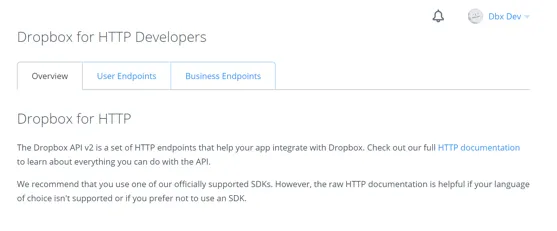
On the HTTP documentation page, you’ll see tabs for two types of endpoints:
User Endpoints. Contains reference documentation for all user content related endpoints. These are the core Dropbox endpoints providing the ability to perform tasks such as file and folder creation, sharing, and accessing Paper documents. If you are building an application targeted solely towards manipulation of content for a single user at a time, these are the only endpoints you will need to use.
Business Endpoints. This section contains documentation for endpoints targeted at Dropbox for Business. These endpoints allow you to perform team, and team member, management tasks such as: adding and removing team members; creating and modifying groups and group membership, generating basic team reports; and examining the team event log.
Be aware that applications targeted towards Business endpoints have a different set of permissions than non-Business API applications. If your business application requires the Team member file access permission you’ll utilize user endpoints for those actions. See the Member file access section of the Business endpoints documentation for more information.
For our first application we only need to be concerned with user endpoints, so let’s dig into that documentation a bit more. Click the User Endpoints tab at the top of the HTTP documentation page:
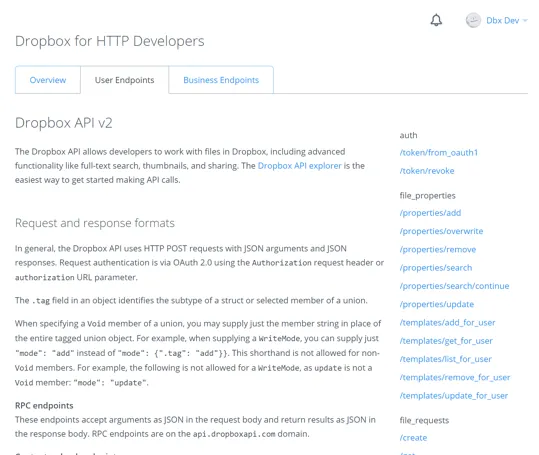
The reference documentation page is broken into three columns. The left column contains general navigation content for the developer website. The right column contains a listing of all the API endpoints. The center column contains endpoint documentation and other reference content. The center column will auto-scroll to the relevant endpoint documentation when any endpoint in the right column is selected.
Let’s examine some API endpoint documentation in a bit more detail. From the right column, scroll to and click /get_metadata under the files namespace:
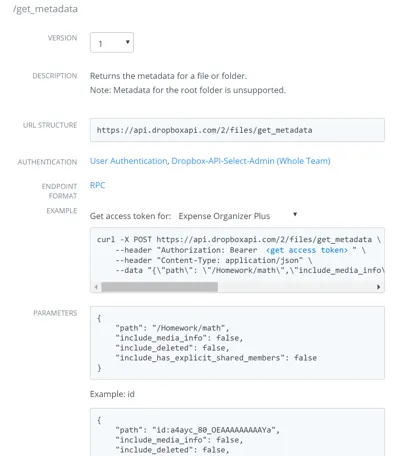
Each endpoint documentation entry is divided into several sections. Let’s take a look at those in more depth:
Description
A brief summary of the function this endpoint provides, along with any potential caveats and/or usage notes
URL structure
The direct access URL to the endpoint
Authentication
Describes the authentication types supported by this endpoint. These can include App Authentication, User Authentication (including Dropbox-API-Select-User), Dropbox-API-Select-Admin (for Team Admin access), or even No Authentication for certain endpoints.
Endpoint format
Dropbox API endpoints support different request and response formats, and the format supported by any given endpoint will be listed here. Most endpoints support an RPC-sytle format via a simple HTTP POST, but certain endpoints such as /upload or /download are content-based and will require different forms of interaction.
Example
In the case of HTTP endpoint documentation the example will contain a curl command with sample parameters you can use to quickly test an endpoint.
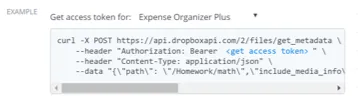
The ‘get access token’ link allows you to easily get an access token to run the example. Once you’ve selected an App, click “get access token” within the example text to substitute in your actual token and you can copy/paste the example request to test it out. Remember, any access token should be stored securely and never shared. You can use the /token/revoke endpoint to disable the token.
Parameters
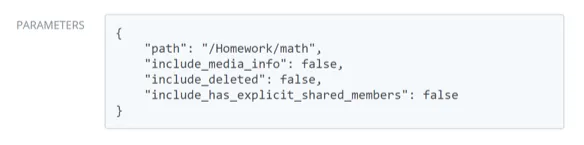
The parameters section will show various examples of arguments that an endpoint will accept followed by a detailed breakdown of the complete parameter list.
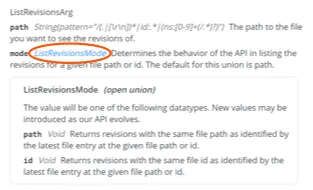
When a parameter is a typed class/struct, detailed information can be expanded by clicking the type definition:
Returns
The returns section of an endpoint definition will contain a sample of the data returned by an endpoint, followed by a detailed breakdown of all possible entities that can be included in the result.
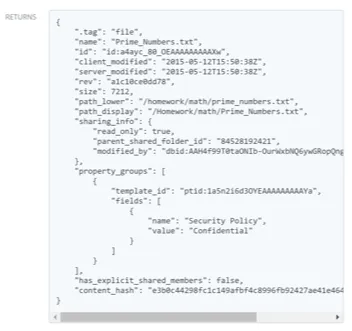
Just like in the parameter section, any named types can be expanded to see the details of their contents.
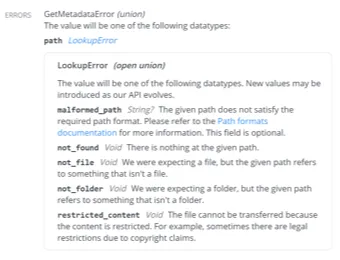
Errors
The errors section will provide information on the endpoint-specific errors (409 return code) that you might encounter when working with an endpoint. Please note that there are other general errors you may encounter when working with the DBX Platform.
Required Scope
The required scope section will detail which scope is required to access this API endpoint (for scoped apps).
API Explorer
Now that we have a clear understanding of the reference documentation we’ll be able to quickly identify and understand the endpoints required to build applications that integrate with Dropbox. One tool that is useful to quickly test endpoint functionality, especially when prototyping ideas, is the API Explorer which can be found here
The API Explorer provides a quick and easy way to call endpoints, test out different parameters, and see the results.
Note that by default the API Explorer launches with the set of user endpoints. If you want to explore the Business endpoints click ‘Switch to Business endpoints’ in the upper right-hand side. We won’t be covering Business endpoints here, but they work in the same way as user endpoints so it shouldn’t be difficult to move between them after completing this section.
Calling an endpoint
To start using the API Explorer, just click an endpoint you’d like to test from the left-hand pane. Let’s walk through an example making a simple call with no parameters. Scroll down and select “get_current_account” under the “users” section in the left-hand pane:

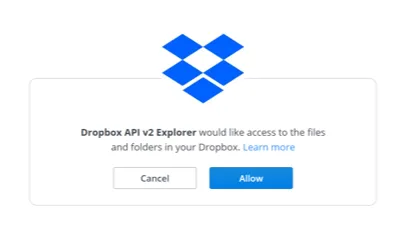
At this point we haven’t provided the API Explorer an access token for our Dropbox account. To authorize the API Explorer, click the ‘Get Token’ button. You’ll be prompted to authorize the API Explorer against your Dropbox:
Now that we have an access token, we can start making calls. Since get_current_account requires no parameters, all we need to do is click on ‘Submit Call’ to see the result:
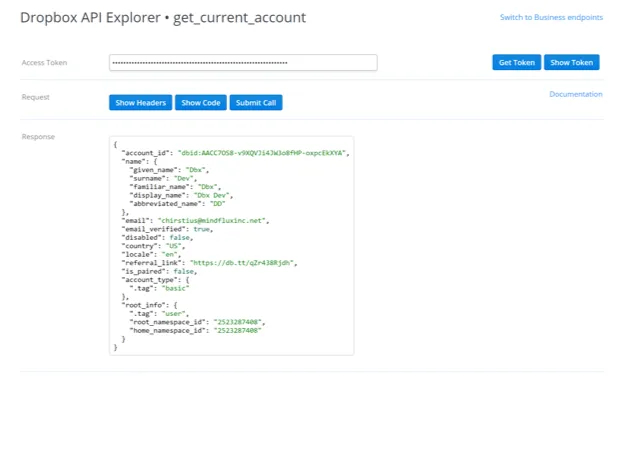
You can see that we get details about the current account we are signed into Dropbox as.
Using parameters
Let’s try another example. We know that in order to build our expense organizer application, we’ll have to get a list of files within our app folder. The endpoint we need to use for this is “list_folder” under the “files” section in the left-hand pane. Go ahead and select that endpoint now:
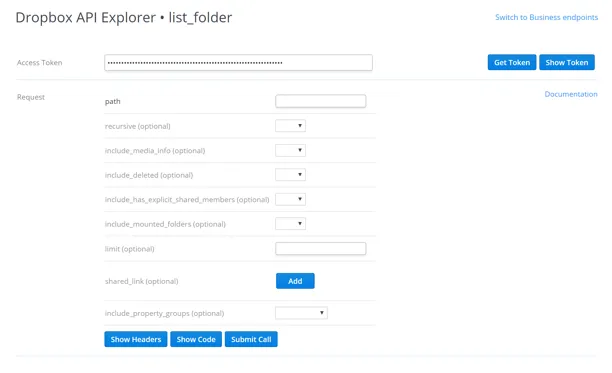
We can see that this endpoint accepts several parameters. If you need help understanding what each parameter does, you can review the documentation. For now, let’s just fill in a few values and try to get some results. It’s important to note that when using app folder access, as we are here, your initial app folder will be empty, so you’ll need to seed some sample data before making these calls to ensure we get meaningful results. In the example below, we’ve created a sub-folder off the root called “expenses” which contains a few invoices and receipts. We’ll set up the API Explorer to list the contents of that folder. At a minimum, I need to provide the “path” parameter and set it to that folder. I’ll set a few other values just to see how they alter the results, but note that everything other than “path” is optional:
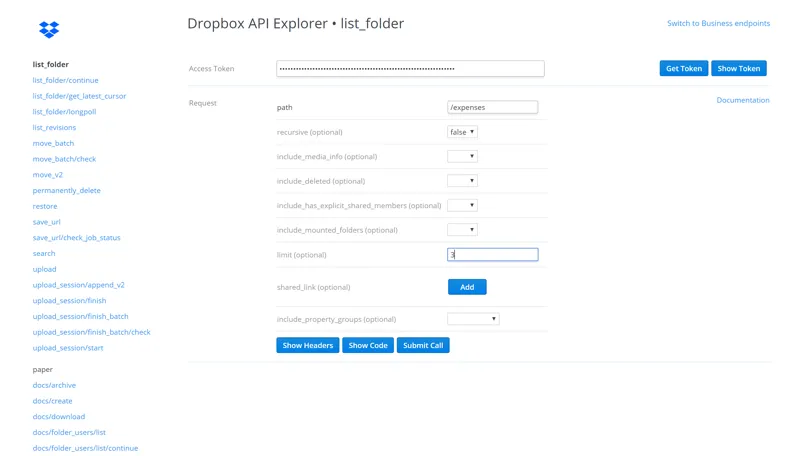
Here we’ve set the path and made the listing not recursive, since we only want to list the current folder - and not any child folders. We’ve also set the limit to 3 results for the call. Adjust the “path” and other parameters based on your own Dropbox account (though you can technically leave “path” blank to list files from the root folder) and then click the Submit Call button:
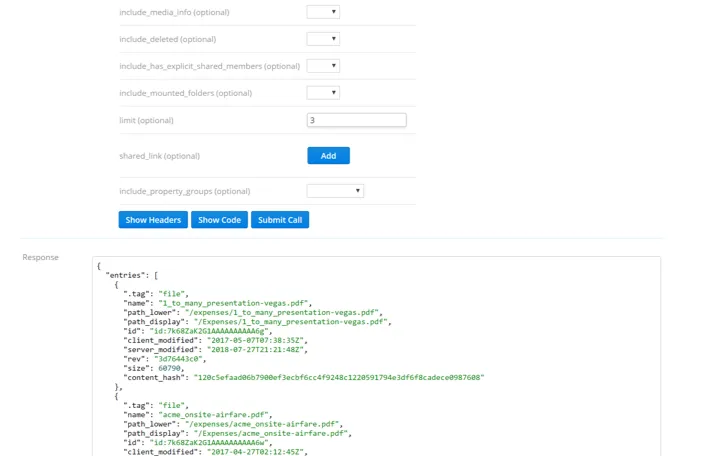
There are a few interesting things to note about the response. First is that we can see there are both files and folders listed in the results and that there are different properties for each. We can also see at the bottom of the request the “cursor” and “has_more” fields. Per the documentation, “has_more” indicates there are more entries available and the “cursor” can be used to retrieve them. Before we do anything else, let’s go ahead and copy the cursor so that we can use it to grab the next set of entries. Once you’ve copied the cursor, switch to the “list_folder_continue” endpoint by clicking it in the left-hand pane:
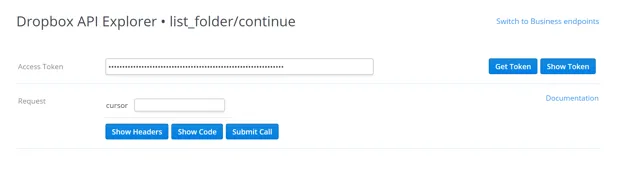
We can see that this endpoint takes only a single parameter, and it’s a cursor. Go ahead and paste in the cursor we just copied, and click ‘Submit Call’:
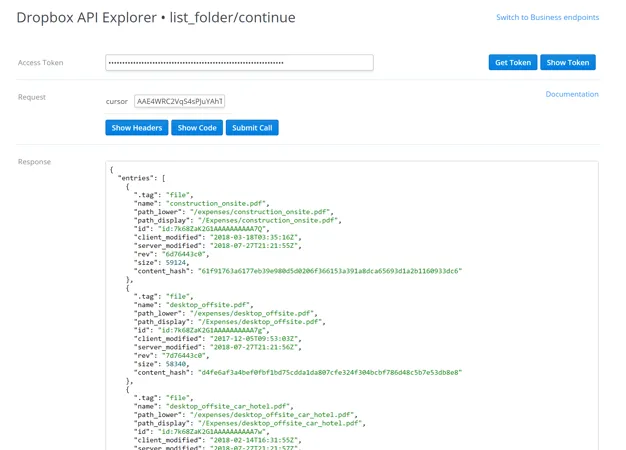
We get a new list of entries, or in this case, the single remaining entry, and we can see that “has_more” is now false. Note though, that we still get a “cursor” back in the results. We can save and use this cursor to make subsequent calls to “list_folder_continue” and get a listing of changes that have happened on this path since our last call. Each time we do, we’ll get a new “cursor” that we can save and use for the next call. We don’t need to worry about that here but this concept of listing files and using cursors will be an important part of our expense organizer script so it’s useful to understand the basic mechanics of these two endpoints.
Summary
We’ve learned how to access and interpret the API reference documentation, and how to call API endpoints from the API Explorer. Next up, we’re going to start writing our first script, an expense organizer that will scan documents in one folder, build a sorted hierarchy of folders organized by year and month, and move files into their proper locations based on their modification times. We’ve already tested some of the endpoints we’ll need to accomplish this - list_folder, and list_folder_continue - but before we move on, we’d like to leave you with an exercise.
Can you find and test another endpoint that would be used to write the expense organizer script? See if you can figure it out and test out some parameters for your Dropbox account.