

Application Setup
Create an application with the permissions needed to manage users, agents, and files. The Developer Console configures the application for you.
Agent Filesystem is in Private Preview and is subject to change. If the Credentials page or Agent Filesystem option is unavailable, contact your Dropbox representative to request access.
Create your app
- Sign in to the Developer Console Credentials page with the Dropbox account that will own the application.
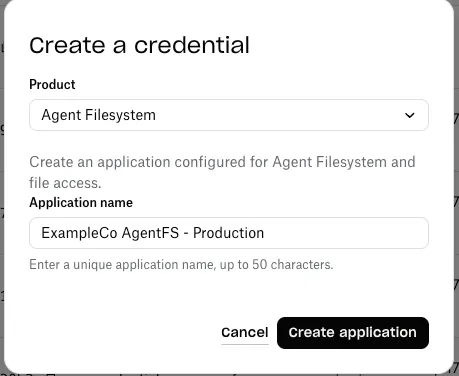
- Click Create credential.
- Select Agent Filesystem in the Product field.
- Enter a unique Application name.
- Click Create application.
- Copy the App key and App secret to configure your backend application. Click Show secret to reveal the secret.

If prompted, verify your email and complete developer onboarding to accept the Dropbox API terms. Then return to Credentials to create the application.
The new application appears in the Credentials list with Agent Filesystem as its product. It is ready to create managed users and agent workspaces. It starts in development status with a limit of 500 users.
Store your app key and secret
Store the app key and secret in your backend secret store.
Click Open application to view its settings. You can return to Credentials and open the application to retrieve its credentials later.
Keep the app secret in your trusted backend. Do not include it in browser or agent-runtime code.
If creation fails without a clear result, check Credentials or Apps before trying again. The application may already have been created.
Choose a user flow
Managed users
Use the app key and secret to create API-only managed users and mint their user access tokens. The application is already configured for this flow. Your end users do not need Dropbox accounts or a Dropbox OAuth sign-in.
Follow the managed user flow, then continue to the Quickstart or Mount guide.
Existing Dropbox users
To use files in an existing Dropbox account, connect that account through the OAuth flow.
For testing with your own account, you can generate a user access token in the application settings:
- Find the OAuth 2 section.
- Under Generated access token, click Generate.
- Copy the token and store it securely in your backend environment.
This test token is valid for four hours. Generate a new one when it expires. Then continue to the Quickstart to create an agent and write your first file.